How to use Moolupa: a quick walkthrough
Add a goal, record what you did, handle a day that doesn’t go to plan and watch your progress add up. The whole app in five short steps.

Moolupa is built around one idea: choose a small step, do it, and record what actually happened. Here’s the whole app in a few minutes.
1. Add your first goal
Press Add goal and say what you want in your own words, like “read 10 pages after dinner” or “save $20 every Friday”. Type it or tap the microphone. Moolupa turns it into a plan with an amount and the days you’ll do it, and you can change anything before you save. If you’d rather fill it in yourself, choose Set it up myself.
2. Record what you did
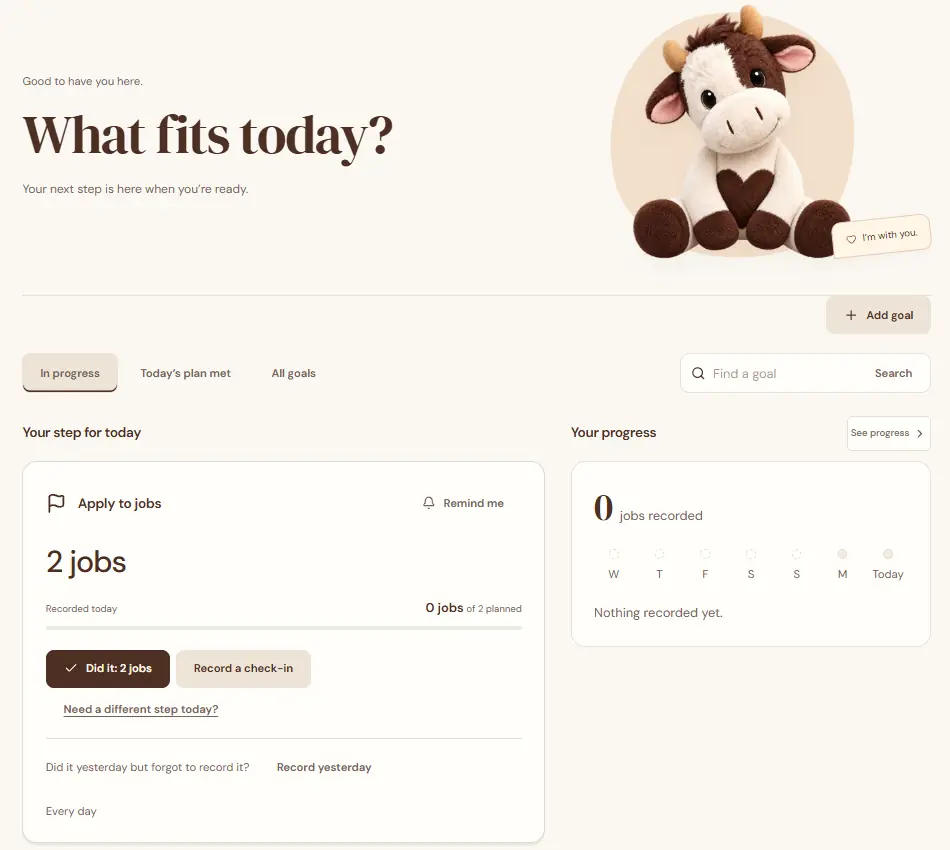
Today shows your step for the day. Press Did it when you’ve done the whole step. If you did part of it, choose Record a different amount and enter the real amount. Ten minutes when you planned twenty still counts. Forgot to record yesterday? Use Record yesterday. To get a nudge at a time that suits you, press Remind me.
3. When today doesn’t fit
Some days won’t go to plan. Press Need a different step today? and pick what fits:
- Make it smaller, for a lighter version of today’s step.
- Move it to another day this week.
- Rest today. A rest day isn’t a missed day, and your progress stays.
If a day slips by without you recording anything, nothing resets. Everything you’ve already done still counts. Going away for a while? Open the goal and choose Pause goal, then Resume goal when you’re back. There’s more on this in how to restart after a missed day.
4. See your progress
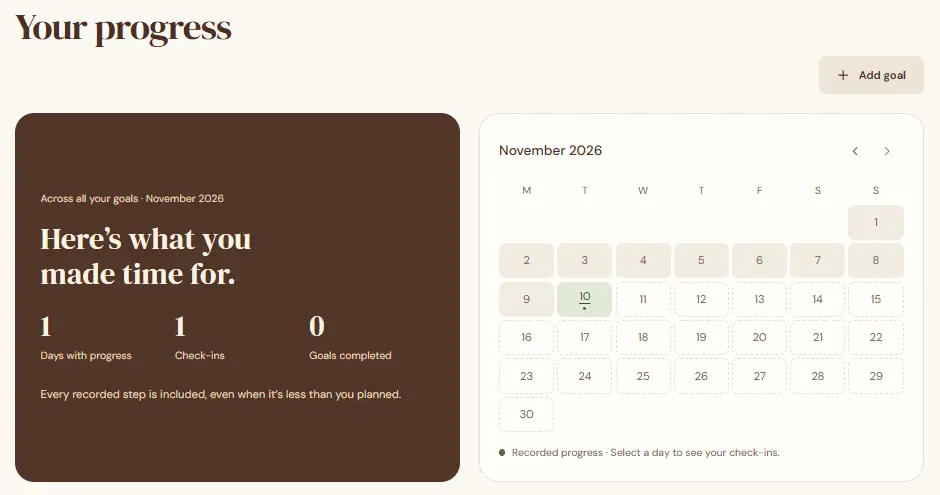
Progress shows how many days you made progress this month, your check-ins and the goals you’ve finished. The calendar marks each day you recorded something, and you can select a day to see what you did.
5. Visit Moo’s place
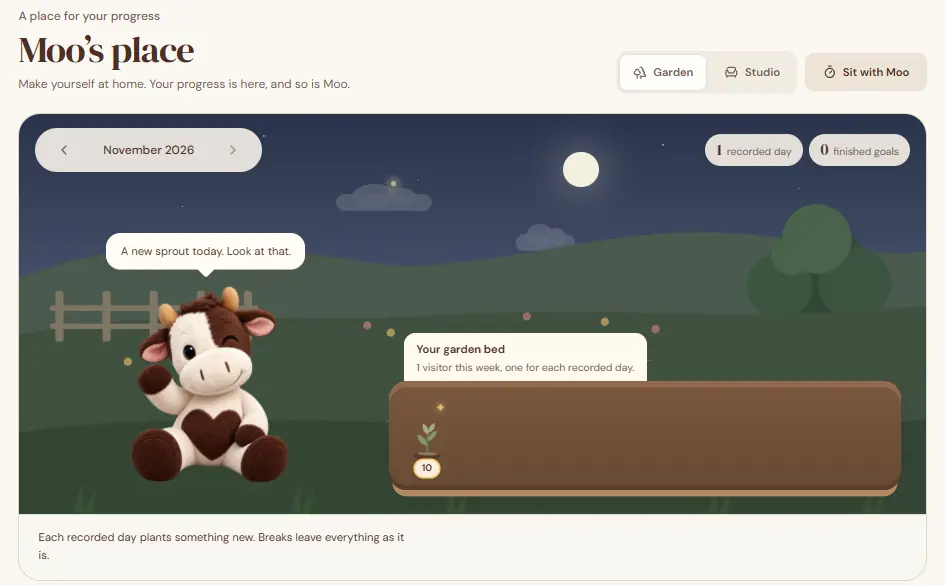
Every day you record plants something new in Moo’s garden, and each one-time goal you finish adds a flower. Breaks leave everything as it is, so nothing wilts while you’re away. You can switch between the Garden and the Studio at the top. With Plus, Moo can also keep your progress by the lake or up on the rooftop.
Bonus: Sit with Moo
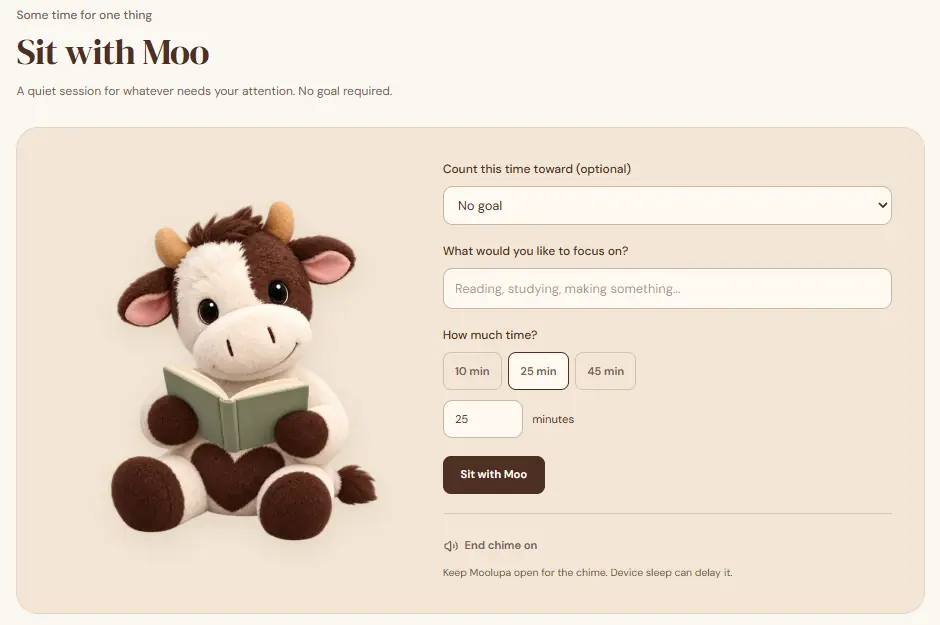
When you want quiet time for one thing, open Focus. Pick 10, 25 or 45 minutes, or type your own, and press Sit with Moo. If a goal is measured in minutes or hours, you can count the time toward it. A chime plays at the end while Moolupa is open. Pick the sound you like under End chime, or turn it off.
Get Moolupa on your devices
Moolupa runs in any modern browser at moolupa.com. On Windows you can install it from the Microsoft Store. On a phone, open moolupa.com and add it to your home screen from the browser menu. Your account and goals are the same everywhere.
That’s all there is to it. Start with one small goal today.